Audience: Organisations & businesses using Amiti with WhatsApp Business
Purpose: Explain what a WABA is, why Amiti requires a dedicated one, and how to connect or create it step-by-step.
¶ 1. What Is a WhatsApp Business Account (WABA)?
A WhatsApp Business Account (WABA) is Meta’s official system for business messaging on WhatsApp.
A WABA allows your organisation to:
- Send WhatsApp-approved template messages
- Run automated conversations
- Send broadcast notifications
- Use verified business profiles
- Operate within messaging tiers (daily send limits)
A WABA is managed inside Meta Business Manager and is required for Amiti to send proactive or broadcast messages.
¶ 2. Meta Account Structure (Very Important)
Meta uses a three-layer structure:
¶ 2.1 Business Manager
- Your organisation’s main Meta container
- Example:
EventCo Business
¶ 2.2 WhatsApp Business Account (WABA)
- Lives inside a Business Manager
- One Business Manager can contain multiple WABAs
¶ 2.3 Phone Numbers
- Each WABA can contain multiple phone numbers
- Each number:
- Must be unregistered
- Can belong to one WABA only
Key rules:
- No limit on WABAs or numbers
- Numbers must be verified before messaging
¶ 3. Why Amiti Requires a Dedicated WABA
Amiti requires full control of the WABA to manage:
- Message templates
- Broadcast delivery
- Messaging tiers
- Number health and quality ratings
¶ Requirements
- ❌ Do NOT use your organisation’s primary/shared WABA
- ✅ Create a WABA dedicated to Amiti
or - ✅ Allow Serova to create one for you
Why this matters:
- Shared WABAs block permissions
- Other platforms interfere with routing
- Naming rules may fail unexpectedly
- Protects your main Meta assets
Recommended naming:
EventCo – Internal WABAEventCo – Amiti WABA
¶ 4. WABA Naming Rules & Meta Caveats
Meta naming approval is strict and inconsistent.
Rules:
- Must match your legal or trading name
- Some regions require the business name first
- A name may be approved in one country and rejected in another
Example:
- ❌
Innovation Days Riyadh by EventCo - ✅
EventCo Innovation Days Istanbul
Be prepared for trial-and-error.
¶ 5. WhatsApp Messaging Tiers
- Tier 1: 1,000 recipients/day
- Tier 2: 10,000 recipients/day
- Tier 3: 100,000 recipients/day
- Tier 4: Unlimited (Meta approval)
Tiers upgrade automatically based on quality and engagement.
Your tier is visible in Amiti once connected.
¶ 6. Connecting an Existing WABA to Amiti
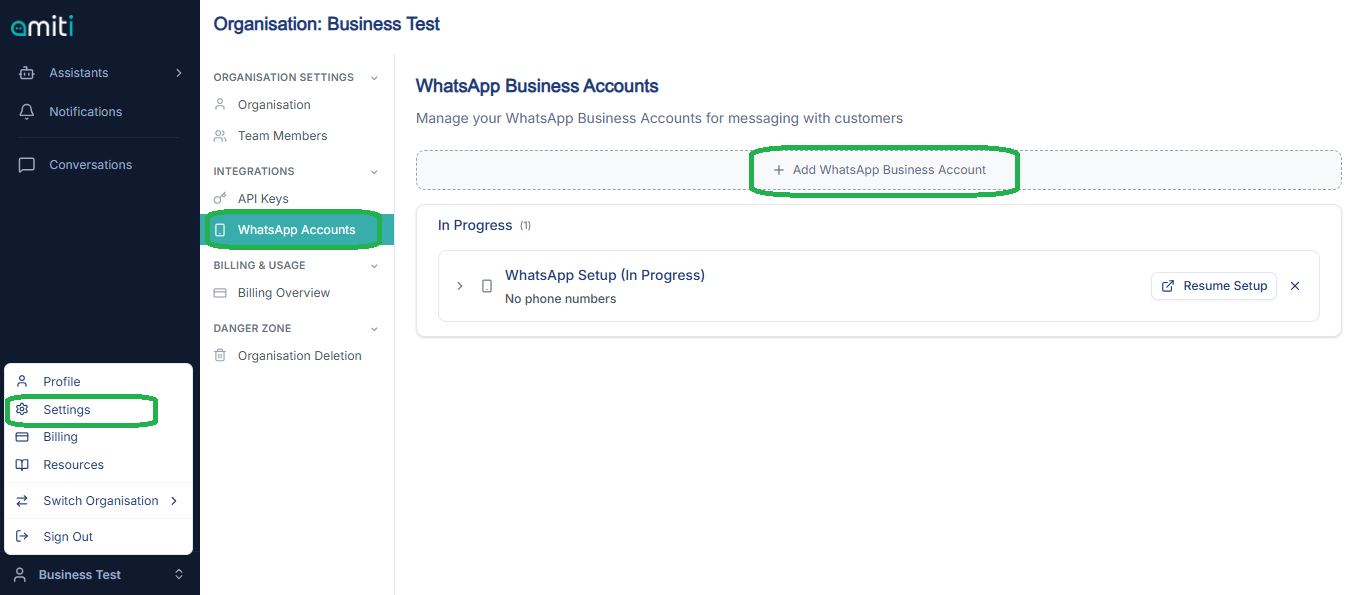
- Log in to the Amiti dashboard
- Go to Settings → WhatsApp Business Integration
- Select Connect WABA
- Log in with Meta Business credentials
- Select:
- Business Manager
- WABA
- Phone number
- Approve permissions
Amiti syncs:
- Phone number
- Templates
- Messaging tier
- Account status
¶ 7. Creating a New WABA During Setup
If you don’t have a WABA:
- Choose Create New WABA during connection
- Follow Meta’s steps
- Add and verify a new or unused phone number
You can add or reassign numbers later if needed.
¶ 8. Common Issues & Troubleshooting
Connection fails
- Ensure you are a Meta Business Manager Admin
Number already in use
- Fully unregister it from WhatsApp first
Templates not syncing
- Confirm permissions
- Allow up to 15 minutes
Name rejected
- Adjust order
- Use exact legal/trading name
- Retry approval
¶ 9. Final Checks Before Going Live
Confirm the following:
- Business Manager → WABA → Number structure understood
- Dedicated WABA exists for Amiti
- Phone number is unregistered and verified
- WABA connected in Amiti settings
- Templates visible and synced
- Messaging tier visible
Once complete, your WhatsApp Business channel is live with Amiti.
¶ 10. Final Notes
- Meta controls all WABA approvals and naming
- Dedicated WABAs prevent most setup issues
- Serova support can assist if Meta blocks setup